
All articles
Help Center Making drinks
Share a recipe
Send any recipe you can open as a clean picture card, with your amounts in your unit.
Any recipe you can open can go out as a picture card: photo, ingredients, steps and garnish on one clean image. The person you send it to doesn’t need Sakaba to read it.
Share a recipe card
- Open the recipe.
- Tap
⋯at the top right. - Tap
Share recipe.
The iOS share sheet opens with the card, ready to send in Messages, Mail or any other app, or to save.
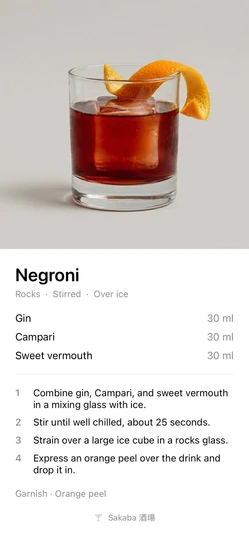
What’s on the card
- The recipe’s photo, when it has one.
- The name, with the glass, method and serve underneath.
- Each ingredient with its amount.
- The steps, numbered.
- The garnish.
- A small Sakaba 酒場 mark at the bottom.
The card always has a light background, even when you use Sakaba in Dark Mode. A short caption goes with it, “Name · made with Sakaba 酒場.”, and a line with a link to Sakaba on the App Store. Apps that take only the picture leave the caption out.
Your amounts, your unit
The card shows the recipe as it’s set up on the page right now:
- In milliliters or ounces, whichever you chose in
Settings → Measurement. - With your servings and any amounts you adjusted. See Servings and scaling.
- Without ingredients you set to 0.
The card doesn’t say how many servings it’s for. If you share a batch, mention it in your message.
Language
The card and its caption are in the language you use Sakaba in. The cocktail’s name appears in its original form, without the local-script name that some languages show next to it in the app. See Languages.
Recipes you can’t share
Recipes marked ✨ need Sakaba Plus. Without Plus, their ⋯ menu only offers Unlock with Plus. You can share the 80 free recipes and all of your own.
Share Sakaba itself
To recommend the app rather than a drink, go to Settings → About Sakaba → Share Sakaba. It shares the link to Sakaba on the App Store.
Good to know
- Your own recipes. They share the same way. The card includes your photo if you added one, and leaves the photo out if you didn’t.
- Step labels stay behind. The card numbers the steps instead of showing labels like
ShakeorStrain. - Optional ingredients appear on the card like any other, without the
Optionaltag.
Questions? Write to sakabaapp@proton.me.