
All articles
Help Center Making drinks
Servings and scaling
Make a recipe for more people, or adjust one ingredient to your taste. Sakaba remembers your changes for each recipe.
You can scale a recipe up for a group, or change one ingredient to suit your taste. The original recipe never changes, and you can go back to it with one tap.
Make more than one
- On the recipe page, tap
Servings, the first item in the ingredient grid. - Drag the ruler to anywhere from 1 to 50.
- Tap
Set.
Every amount multiplies by the number of servings. A Negroni with 30 ml each of gin, Campari and sweet vermouth becomes 120 ml of each at 4 servings.
Adjust one ingredient
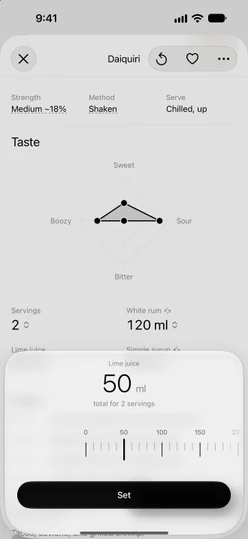
Tap an ingredient, drag the ruler, then tap Set. Only that ingredient changes; the others stay as they are. While you drag, the Taste chart and the strength estimate move with you, so you can see what your change does before you commit to it. To leave without changing anything, swipe the sheet down.
When the recipe is set to more than one serving, the ruler shows the total for the whole batch, and the sheet says so: total for 4 servings. Sakaba keeps your change per serving, so if you change the servings afterwards, your adjusted ingredient scales along with the rest.
The ruler moves in steps of 5 ml or ¼ oz per serving, so in bigger steps for a batch. Dashes and pieces move one at a time; teaspoons, tablespoons and barspoons by halves.
Leave an ingredient out
Drag its ruler all the way to 0. The sheet shows 0 removes it from the pour, and after you tap Set, the ingredient reads — on the recipe. Guided mixing and the share card skip it.
To bring it back, tap the ingredient and drag the ruler up again.
Go back to the original
As soon as you change anything, a ↺ button appears at the top of the recipe. Tap it, then tap Reset. The servings and every ingredient go back to the recipe as written.
What uses your version
The amounts you set are the recipe as you’ll pour it, so Sakaba uses them everywhere that matters:
- Guided mixing shows your amounts at each step.
- Share recipe puts your amounts on the card.
- A journal entry you start from the recipe, with
Add entryorHow was it?at the end of guided mixing, starts with your servings and amounts. They’re saved with that entry only. See Tasting journal. - The strength estimate and the Taste chart follow your changes.
Good to know
- Saved per recipe, on this device. Close the recipe and come back later: your servings and amounts are still there. They don’t sync to your other devices through iCloud, aren’t part of backups, and are removed if you delete the app.
- Servings alone don’t change the taste. Scaling keeps every proportion the same, so the Taste chart only moves when you change one ingredient against the others.
- Duplicate & edit copies the original. A copy made with
Duplicate & editstarts from the recipe as written, not from your servings and amounts. - Lists show the original. Recipe lists and the touch-and-hold preview always show the recipe as written.
- Editing your own recipe starts fresh. When you change the ingredients of a recipe of your own in the editor, any servings and amounts you set on its page are cleared.
- Your unit. Amounts show in milliliters or ounces, whichever you chose. See Switch between ml and oz.
Questions? Write to sakabaapp@proton.me.