
All articles
Help Center Your recipes & journal
Photos
Add your own photos to the recipes you create and to journal entries, and view any photo full screen.
You can add your own photos to recipes you create and to your journal entries. The library’s recipes come with their own photos.
Where photos work
- Your own recipes: one photo each, added in the recipe editor, from your photo library.
- Journal entries: one photo each, taken with the camera or chosen from your library.
- Library recipes keep the photo that comes with Sakaba; you can’t replace it. To use your own picture, make your own version with
Duplicate & edit. The copy starts with the original photo, and you can replace it in the editor. See Create your own recipe.
Add a photo to your recipe
In the recipe editor, tap the Photo square next to the name and choose a picture. To replace it, tap the photo and choose another. To remove it, tap the small ✕ on its corner.
The recipe editor picks from your photo library only. To use a new shot, take it with the Camera app first.
A recipe without a photo shows a drawn cocktail glass instead.
Add a photo to a journal entry
In the entry editor, scroll to Photo and tap Take photo or Choose from library. Take photo only appears on devices with a camera. To remove the photo, tap ✕ on its corner; then you can add a different one. See Tasting journal.
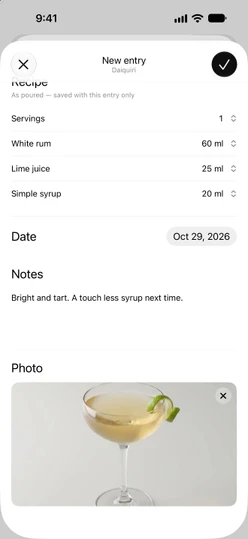
View a photo full screen
Tap the photo on a recipe page (yours or one from the library) or on a journal entry’s page. In the full-screen view:
- Pinch to zoom in, or double-tap to zoom in and out.
- Drag to move around while zoomed in.
- Tap once, or tap
✕, to close.
The drawn glass on a recipe without a photo doesn’t open.
Size and storage
Sakaba saves a resized copy of each photo, at most 2048 pixels on its long side, so photos stay light to store and sync. The original in your Photos library isn’t changed. Your photos are saved with the recipe or entry and sync with it through iCloud; see iCloud sync.
Deleting a recipe or an entry deletes its photo too.
Permissions
- Photo library. Sakaba uses the system photo picker, which hands the app only the photo you choose. It doesn’t ask for access to your whole library.
- Camera. The first time you tap
Take photo, iOS asks whether Sakaba may use the camera. If you said no and change your mind, turn on Camera for Sakaba in the iOS Settings app, underApps → Sakaba.
“Couldn’t load that photo”
This message means the photo you picked couldn’t be read. That can happen with a photo stored in iCloud Photos that isn’t downloaded to your device yet. Any photo you already had stays in place. Check your connection and try again, or pick a different photo.
In the recipe editor, if you tap save while a photo is still loading, Sakaba asks you to wait: “Still loading your photo — one moment.”
Questions? Write to sakabaapp@proton.me.