
All articles
Help Center Your recipes & journal
Create your own recipe
Save your own cocktails next to the library, with ingredients, steps for guided mixing, a taste profile and a photo.
Your own recipes live alongside the library and work the same way: you can scale them, mix them step by step, log them in your journal and see them in My Bar.
Start a new recipe
On Home, open All cocktails, a spirit, or one of the By taste lists, and tap + at the bottom of the list. The editor opens as New cocktail. If you start from a spirit’s list, that spirit is already set as the base.
To build on an existing recipe instead, see “Duplicate a recipe” below.
Name, description and photo
Type the name in Cocktail name and, if you like, a line in Short description (optional). Tap the Photo square to add a picture from your photo library. See Photos.
Add ingredients
Tap Add ingredient:
- Start typing in
Ingredient name. Matching ingredients appear below as you type; tap one to pick it. If yours isn’t there, tapAdd “…” as a new ingredient. - Set the amount with the ruler. Use the
Unitmenu for measures like dashes, teaspoons or wedges; volumes use milliliters or ounces, as set in Settings → Measurement. - Turn on
Optionalif the drink works without it. - Tap the checkmark at the top right to add it.
The checkmark stays inactive until you’ve picked a suggestion or chosen to add a new ingredient, and the amount is above zero. Picking a suggestion is worth it: the ingredient then shows in the app’s language and counts in My Bar. A new ingredient is saved exactly as you typed it.
Tap an ingredient to change it or to Remove ingredient. Long-press it to Move up, Move down or Remove.
Add steps
Steps are optional, but guided mixing needs them: without steps, the recipe has no Start mixing button.
Tap Add step. Give it a short label if you like, such as “Shake”, then write what to do under Instruction; the instruction is required. Under Ingredients in this step, tap the ingredients that go in at this step. Their amounts then show at that step while you mix. If you leave this blank on every step, guided mixing shows all the amounts on the first step.
Long-press a step to move or remove it.
Strength, taste and details
- Strength. Choose
Light,MediumorStrong. - Taste. Drag each of the four points on the radar to set how sweet, sour, bitter and boozy the drink is. See Flavor profile.
- Details. Pick the
Base spirit(required), and optionally theGlass,MethodandServe. Type aGarnishin your own words.
If you haven’t chosen a base spirit, Sakaba fills it in from your first spirit ingredient, for example Gin when you add gin. You can change it.
Save
Tap the checkmark at the top right. A recipe needs a name, a base spirit and at least one ingredient. If something is missing, Sakaba tells you what, for example “Choose a base spirit to save.” When it saves, you’ll see Cocktail added.
To leave without saving, tap ✕. If you’ve made changes, Sakaba asks first: choose Keep editing or Discard changes.
Duplicate a recipe
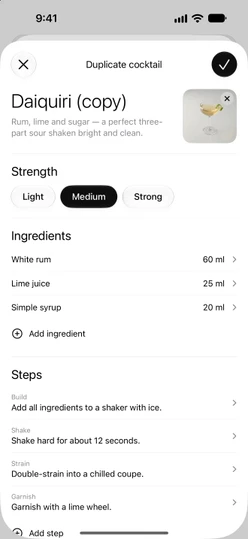
You can’t edit the library’s recipes, but you can make your own version of any recipe you can open. On its page, tap ⋯ at the top right and choose Duplicate & edit. The editor opens as Duplicate cocktail, with everything copied, including the photo and which ingredients go in at each step. The name gets “(copy)” at the end, or “(copy 2)” and so on if that name is taken.
When you save, the page switches to your copy. The original stays as it was.
Edit or delete your recipe
On your recipe’s page, tap ⋯ and choose Edit recipe or Delete cocktail. You can also delete one from a list: long-press it and choose Delete cocktail.
Deleting a recipe also deletes its journal entries. It can’t be undone.
Where your recipes show up
- In its base spirit’s list on Home and in
All cocktails. To see only yours, open the filter menu at the bottom of a list and chooseMy recipes only. - In Search, in My Bar’s Cocktails tab, in Spotlight, and in Siri’s random picks.
- On all your devices signed in to the same iCloud account. See iCloud sync.
Your own recipes are never locked, with or without Plus.
The free limit
Without Sakaba Plus you can save 3 recipes of your own in total; duplicates count too. When you’ve reached 3, + and Duplicate & edit open the Sakaba Plus screen instead. Deleting one of your recipes frees up a slot. See Free vs Plus.
If your Plus ends, you keep every recipe you’ve made and can still edit or delete them. You just can’t add more while you have 3 or more.
Good to know
- Amounts are stored once. Volumes are saved in milliliters and shown in your chosen unit, so switching between ml and oz never changes the recipe.
- Backup. With Plus you can export your recipes to a file. See Backup and restore.
Questions? Write to sakabaapp@proton.me.