
All articles
Help Center My Bar & shopping
See what you can make
My Bar’s Cocktails tab sorts the library into what you can make now, what you can make with a swap, and what you’re a bottle or two away from.
Once your bar is set up, the Cocktails tab in My Bar shows what you can make right now, what you could make with a close substitute, and which bottles would get you the most new drinks.
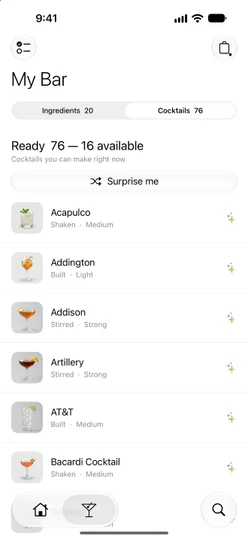
Open the Cocktails tab
In My Bar, tap Cocktails at the top. You can also start from Home: the row under the cocktail of the day reads Stock your bar while your bar is empty and takes you to Ingredients. Once you’ve ticked some bottles it reads Ready in your bar with your count, and takes you straight to this list.
What each section means
The list has up to five sections, in this order. Sections with nothing in them are hidden.
- Ready. Cocktails you can make with exactly what you have, including like-for-like swaps such as Tennessee whiskey for bourbon.
- Ready with a swap. Cocktails you can make if you use a close substitute you own. Each row says what you’d swap and how it changes the drink. See Substitutions.
- One ingredient away. Each row names what’s missing (
Missing …). Tap the bag on the right to put it on your shopping list. - Two ingredients away. The same, with both missing ingredients; the bag adds both.
- Stock up to unlock more. Bottles that would each complete two or more of your “one ingredient away” drinks, with how many. Tap a tile to add it to your shopping list, and tap it again to take it off.
Each section shows its first few entries: 10 rows for Ready, 5 for the other lists and 6 Stock up tiles. Tap Show … more to open the whole section, with its own search. The full Ready and Ready with a swap lists can be sorted and filtered like any other cocktail list.
Tap any drink to open its recipe.
Free recipes and Plus
Your bar can make Plus recipes too, so without Sakaba Plus some Ready rows carry a ✨ and open the Sakaba Plus sheet instead of the recipe. That’s why the Ready header adds a second number, how many of those drinks you can open (“— 9 available”, for example). The Home row shows the same pair.
Stock up tiles do the same: when some of the drinks a bottle would unlock need Plus, the tile shows two numbers, those you could open on the free tier and those with Plus.
With Plus, every drink opens and you see a single number.
Surprise me
When more than 5 drinks are ready, a Surprise me button appears under the Ready header. It picks one of your Ready drinks at random. Without Plus, it picks from the ones you can open. See Shake to mix.
When the list updates
The Cocktails tab doesn’t reshuffle while you’re reading it. After you tick or untick bottles on Ingredients, switch back to Cocktails and it’s up to date. Tapping Add to bar in the shopping list updates it straight away.
What counts as “ready”
- Optional ingredients don’t count. A drink is ready even if you’re missing an ingredient marked
Optional. - Water and ice are assumed. You never need to tick them.
- Specific covers general. A bottle of bourbon covers recipes that ask for whiskey. It doesn’t work the other way: if you only ticked a general whiskey, a recipe that asks for bourbon still needs bourbon.
- Your own recipes are included. Recipes you create show up here like the built-in ones.
Good to know
- “Almost there” on Home. You’ve ticked some bottles, but nothing is fully makeable yet. Add a few more, or check One ingredient away to see what’s closest.
- Ask Siri. Say “What can I make in Sakaba”. Siri answers with the number of ready drinks you can open. See Siri and Shortcuts.
- Swaps aren’t in the count. The ready count on Home, in My Bar, from Siri and in weekend reminders includes Ready drinks only, not Ready with a swap.
- Closest first. In All cocktails, a spirit’s list, a By taste list or a collection, the sort option
Closest to readyputs the drinks you’re fewest bottles away from at the top.
Questions? Write to sakabaapp@proton.me.